
Preview prerequisites and setup
Enable the preview features you want on the machine that runs your subshell.
Before you start
For a graphical machine, follow Install Subshell Client and Desktop node setup. For a headless machine, follow Enroll a node with the CLI, including its installation steps. You can also use the server's built-in node.
You must own the node to change its preview settings. An administrator configures the server's built-in node. For a virtual display, first install the dependencies on that machine by following Linux virtual displays or macOS virtual displays.
Enable node features
Both preview switches are off by default and work independently.
-
In the server dashboard, open Settings → Nodes, select the machine, and open Overview.
-
Turn on Allow web previews, Allow virtual displays, or both, depending on the views you need. Each switch has its own effect:
Allow web previews enables Web app previews and Browser watching.
Allow virtual displays lets subshells request a screen for graphical apps. Each display uses extra memory and CPU; web app previews don't need one.
-
Under Allow virtual displays, enable the providers you want this node to use and choose a Default display provider. Choose Recheck after resolving missing requirements. Each enabled provider can be selected when starting a subshell.
Choose Xvfb + VNC for Linux or BetterDisplay for macOS. The card checks requirements on the selected node, which may be a different machine from the one displaying the dashboard. A pending or failed requirements check blocks a launch with a virtual display until you resolve it or turn off the launch's display option.
Each subshell saves its provider and display size for restarts. Changing the node's default doesn't change existing subshells. Disabling a provider prevents new allocations and restarts that need it, while existing displays keep running. Enabling a provider starts no processes until a subshell requests a display.
You can save a display choice in a preset. Review it when changing nodes: if the new node can't provide that display, the launch form turns the option off and explains why.
Turning either switch off blocks new operations without stopping existing subshells or immediately closing existing connections. Remove access or end the subshell when you need to revoke an existing connection. On a Mac, use Disable helper to stop capture and input immediately.
Access to views
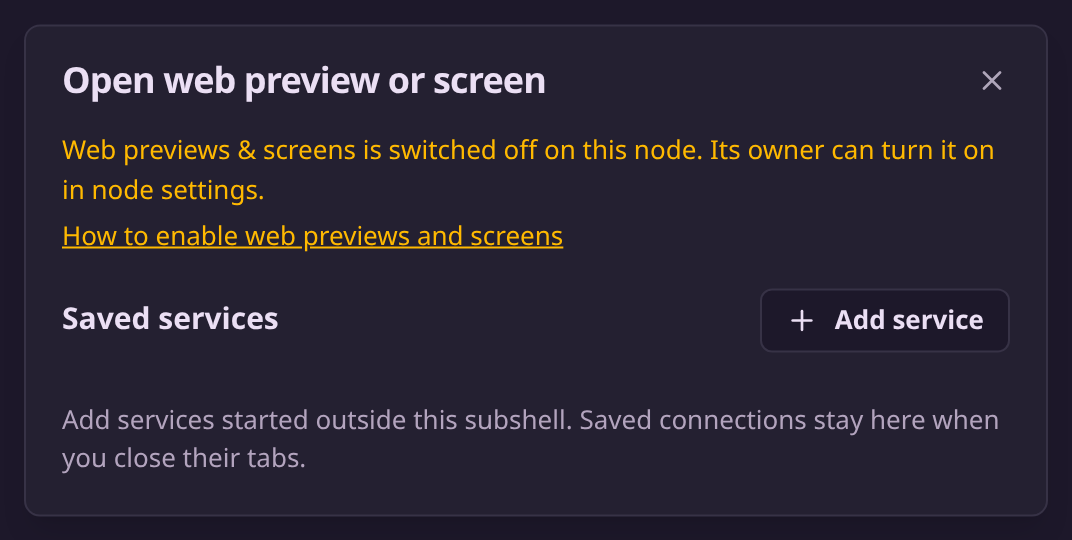
You need edit access to open or configure app previews, manage saved services, or control a virtual display. View access lets you discover views, see saved services, and watch the browser found for that subshell. Unavailable app and screen controls explain the access they need. The header badge counts only views you can open. If both features are off, the picker explains this and links to this setup guide; the preview tab also offers Open node settings.
Last updated on