
Web app previews
Open a website running on your node beside its subshell.
Before you start
Follow Preview prerequisites and setup for the node setting and access you need. Automatic port discovery requires Linux; use a saved service for a web server on macOS.
Check a website
- Start your project's dev server inside a subshell. Keep it listening on loopback; you don't need to expose its port to your network.
- Use the Web previews & screens icon in the subshell header. A window icon means the subshell has a virtual display; otherwise the header uses a globe. Its badge counts views you can open that haven't been saved: discovered ports without a saved service, plus an available screen and browser watch. Opening a port doesn't save it; Add service removes that port from the count.
- In Open web preview or screen, choose the Web preview row for your dev server's port.
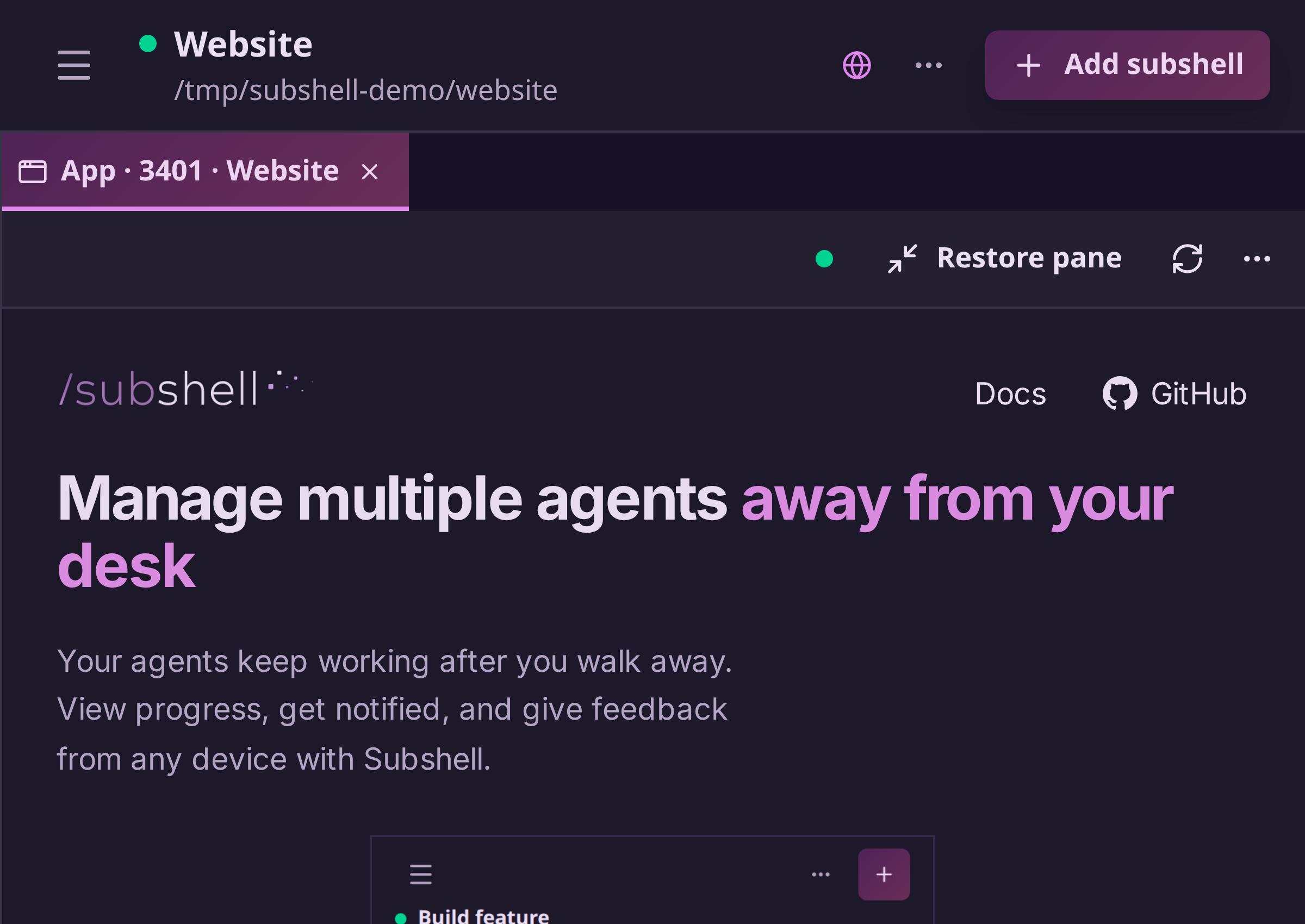
- Check the site in the preview beside the terminal. Try navigation, forms, filters, and other interactions, then give your agent specific feedback.

See Arrange and refresh views for workspace tabs and toolbar controls.
Add a service started elsewhere
Use a saved service when your web server runs outside the subshell or its port isn't discovered automatically.
- Use the Web previews & screens icon in the subshell header, then choose Add service under Saved services.
- Enter the service's Port and choose HTTP or HTTPS. You can add a name to make it easier to recognize.
- Leave Host under Advanced as
localhostfor a service on the subshell's node. For a service on another machine, enter a hostname or IP that the node can reach. Hostnames resolve on the node, not on the device viewing the dashboard. - Choose Save service, then select the saved row to open its workspace tab.
The subshell must be running. HTTPS requires a certificate the node trusts and whose name matches the host by default. For a service you trust that uses a self-signed or mismatched certificate, select Ignore certificate validation when adding the HTTPS service. This applies only to that saved service: traffic stays encrypted, but Subshell can't verify the server's identity. To change an existing service's certificate setting, use its Edit button.
Saved connections stay with the subshell across reloads and closed tabs. Use the remove button beside a saved row to delete the connection and disconnect its open views. Removing a connection doesn't stop the service. People with view access can see the list but can't open or change its connections.
Configure an app preview
Choose a discovered app in Open web preview or screen to open its configuration step. Select the protocol and adjust the options, then choose Open preview. To keep the configuration, select Save this configuration, optionally give it a name, and choose Save and open.
Add service offers the same options for a custom host and port. Use Edit beside a saved service to change its name, destination, or options. Save changes disconnects its open previews; open the saved service again to use the new settings. For an app that's already open, More view actions → Configure preview opens these controls too.
| Setting | Default | What it changes |
|---|---|---|
| Protocol | HTTP | Chooses HTTP or HTTPS for the connection from the node. |
| Ignore certificate validation | Off | Skips certificate and hostname checks for this HTTPS destination. |
| Rewrite app URLs | On | Routes supported app URLs through the private preview path. |
| Pass the preview host | Off | Sends your browser's preview host to the app instead of the target host. |
| Rewrite redirects | On | Keeps redirects to this app under the preview path. |
| Run outside the sandbox | Off | Allows browser features that isolation blocks, including storage and some sign-in flows. |
A saved service keeps these options with its name and destination. People with edit access can change it. Opening a saved service with Run outside the sandbox enabled shows its configuration and warning before opening.
Running outside the sandbox trusts the website with your Subshell account. It can access your browser session and data, interact with the dashboard, and act with your account's permissions. Only enable this for a site and everyone who can change it that you fully trust. The preview remains restricted to the account that opened it; sharing its link doesn't authorize another account to run it.
Browser compatibility and private links
By default, app previews use an isolated browser document so the website's JavaScript can't read your dashboard's DOM, storage, or authenticated API responses. Target cookies stay in the preview's server-side cookie jar. Sites that need browser storage, service workers, JavaScript-managed cookies, or full browser login flows may work with Run outside the sandbox enabled for a trusted app. This doesn't guarantee compatibility with every app. A virtual display lets you use a normal browser on the node.
With Rewrite app URLs enabled, Subshell rewrites supported HTML attributes,
CSS URLs, and module imports. It also adds a browser compatibility script for
common requests such as fetch, XMLHttpRequest, WebSocket, and EventSource.
This helps apps that assume they're hosted at /, but it doesn't make every
app compatible. A target's strict Content Security Policy can block the
compatibility script or other resources. Preview settings don't relax the
sandbox.
If the app rejects the preview's host or origin, check the app's allowed-host and origin settings. Subshell doesn't bypass the app's access checks.
Treat a preview URL as a private access link. Anyone who receives it can use it while its session remains valid, and closing a tab doesn't immediately revoke a copied link. Remove a saved service to revoke its connections, or remove access or end the subshell to revoke existing access. Turning off previews on the node doesn't immediately revoke existing connections.
The server can read forwarded app traffic. See Preview security for the trust boundaries and Architecture for the data path.
For implementation details, read Web preview architecture and Develop and extend web previews.
Edit on GitHubLast updated on