
macOS virtual displays
A macOS virtual display gives your subshell a screen within the Mac's signed-in desktop.
Before you start
Follow Preview prerequisites and setup to connect the node and check access requirements. On a Mac running macOS 14 or later, install Subshell Client or Subshell Server; both include Subshell Display Helper. Use the Mac that runs the selected node, with your macOS account signed in.
Keep another screen as the main display; the helper refuses a virtual screen that is main or mirrored. A Mac whose only screen is the new virtual display isn't supported by this provider.
Install BetterDisplay from its official download page, choosing a release for your Mac's operating system, and keep it running. You need CLI access enabled and a license or trial that supports virtual screens. Subshell doesn't install or purchase BetterDisplay for you.
In BetterDisplay, open Settings → Application → Integration and turn on CLI access if it's off. See BetterDisplay's integration guide.
macOS displays share your login session, keyboard focus, and pointer. Apps and notifications on the virtual screen can appear in its stream. This isn't a separate login session or a sandbox; applications retain the execution account's permissions. Only enable it for people you trust to control that Mac.
You don't need to configure BetterDisplay as a VNC server or expose a VNC port. Subshell's local VNC listener has no separate password. Don't enable virtual displays on a Mac shared with untrusted local OS users, and don't publish the listener through a port forward. Read Preview security.
Enable the helper
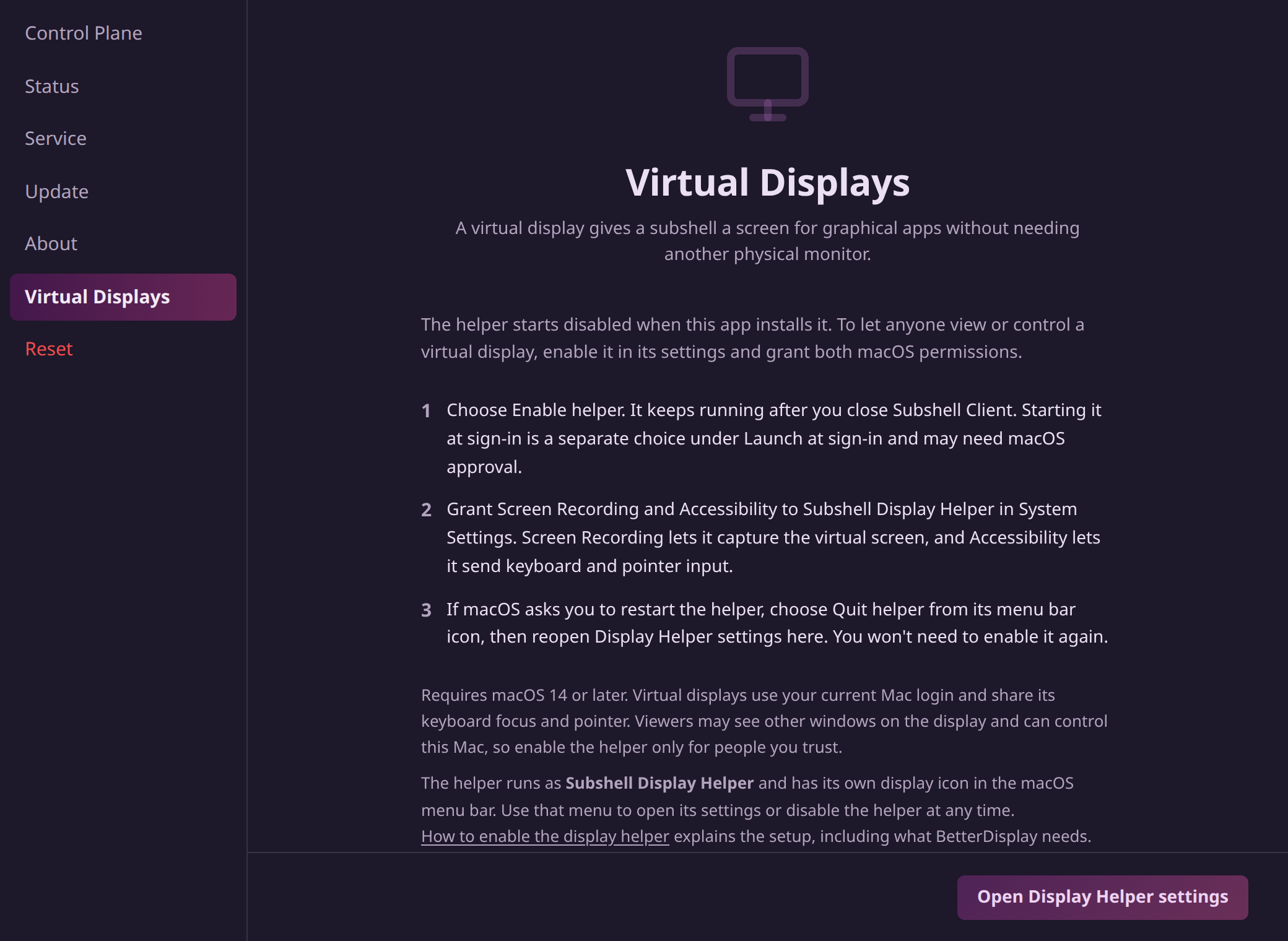
- On that Mac, open Subshell Client or Subshell Server. From the app's menu bar icon, choose Open Client App or Open Server Controls, respectively. In that window, choose Virtual Displays → Open Display Helper settings. You can also open these settings from the helper's own menu bar icon. Opening settings doesn't enable the helper.
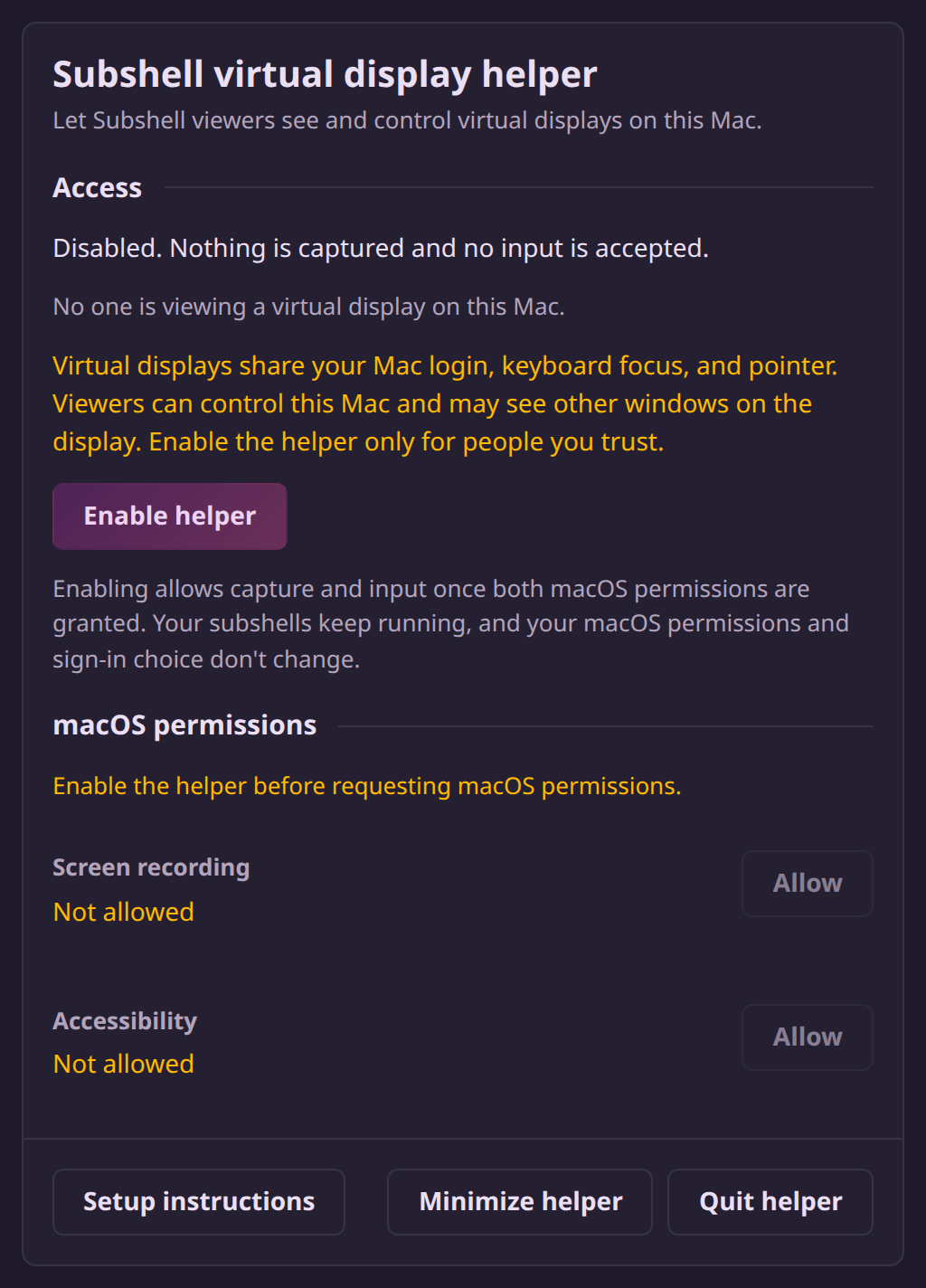
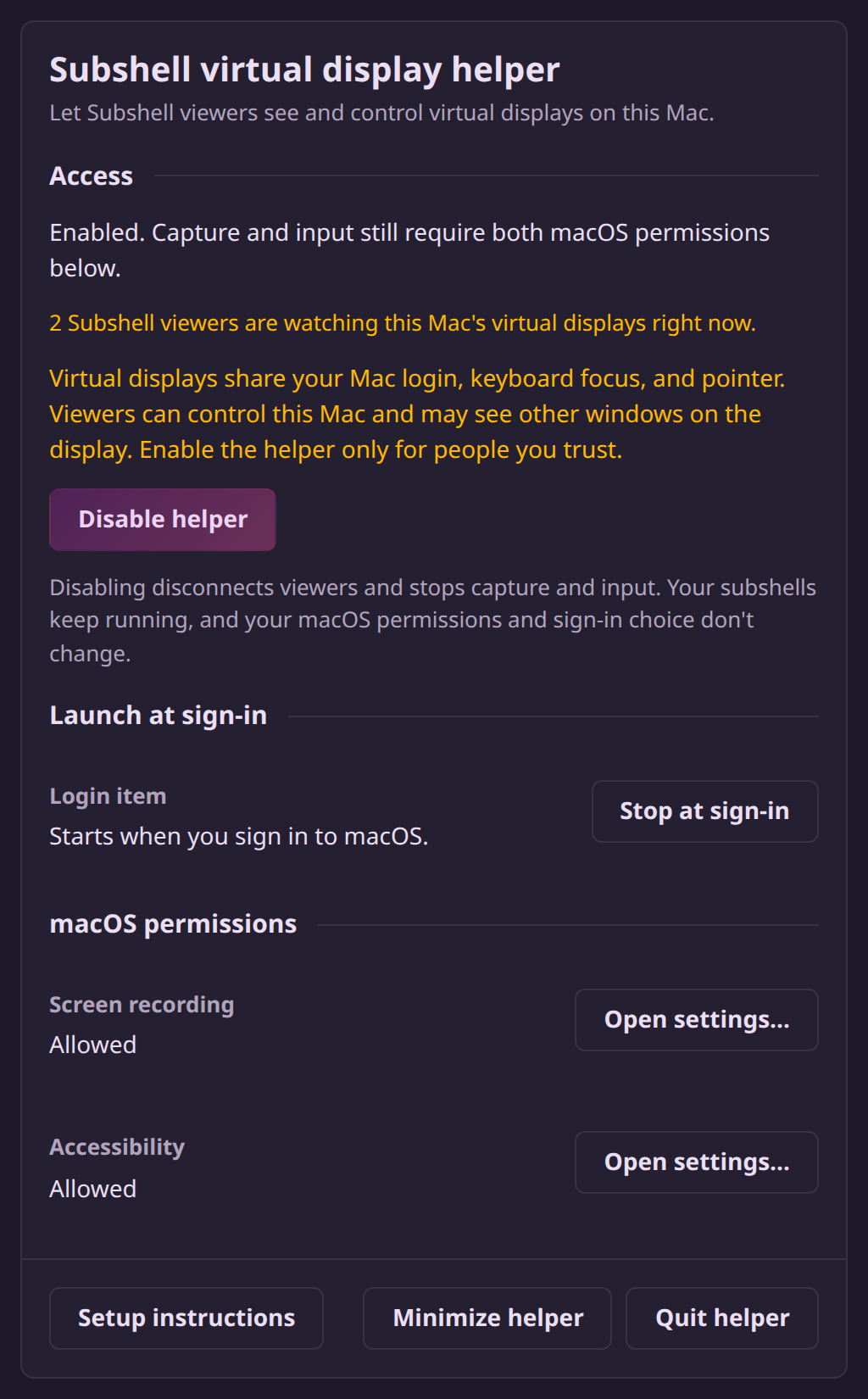
- Read the shared-desktop warning, then choose Enable helper. Capture and input require your consent and both macOS permissions. If you want the helper to come back when you sign in, choose Start at sign-in in the panel's Launch at sign-in section, and choose Open login items… if that row says macOS is still waiting for your approval.
- Choose Allow on the Screen recording row and Allow on the Accessibility row. In macOS System Settings, grant both permissions to Subshell Display Helper. Screen Recording lets it capture the virtual screen; Accessibility lets it send keyboard and pointer input. Subshell can't grant these permissions through node settings or MCP. If macOS requires a restart, choose Quit helper from the helper's display icon in the menu bar and reopen its settings through either desktop app. Your consent stays, so you don't have to enable it again.
- Follow Enable node features to allow virtual displays with BetterDisplay on this node.
- Launch a subshell on that node with Virtual display enabled and BetterDisplay selected under Display provider, or Node default if it selects BetterDisplay. Use the Web previews & screens icon in the subshell header, then choose Virtual display to open its screen.
Update the helper
After updating either desktop app, open its controls as described above and choose Virtual Displays → Open Display Helper settings to check and install its bundled helper. Both apps use the same installed helper; opening an older app doesn't downgrade a valid newer installation.
A running helper can't be replaced, even while disabled. If an update is waiting, choose Quit helper from the helper's menu-bar icon, then reopen settings through the updated desktop app. Quitting disconnects anyone watching its screens and stops their input; terminal subshells keep running. The update doesn't change your consent or macOS privacy settings.
The desktop app verifies the helper before opening it, including when a running helper prevents an update. If verification fails, don't bypass the signature check. Quit the running helper if present and reopen settings through a trusted installation of the desktop app. If that still fails, follow Update troubleshooting.
Use and stop the display
macOS doesn't automatically place an app on the subshell's screen. Move the app's window onto that screen on the Mac, or use the app's own display-selection support. Keyboard input requires a focused window entirely inside the virtual screen; click that window before typing. macOS secure input and protected system prompts can prevent remote input; complete those interactions on the Mac.
Capture runs at up to five frames per second; audio and clipboard sharing aren't supported. Native letter shortcuts use the Mac's ANSI key positions; non-US keyboard layouts may interpret shortcuts differently.
To stop access, open the same panel and choose Disable helper, or choose Disable helper from its menu-bar icon. This disconnects all helper captures and stops input for both desktop apps. Your terminal subshells keep running. If you chose to start it at sign-in, it stays in macOS's login list; when it starts again, it finds itself disabled and exits. To take it out of the list, use the panel's Stop at sign-in button. macOS permission grants remain in place; you can revoke them separately in System Settings. Quit helper asks for confirmation, then closes the helper and disconnects anyone watching. Existing virtual screens can remain until their subshells close or recovery can contact BetterDisplay again.
The helper's Disable helper control stops access immediately; the node switch only blocks new operations. If the Mac has no running helper, the node reports that requirement instead of launching it.
Edit on GitHubLast updated on