
Web previews & screens
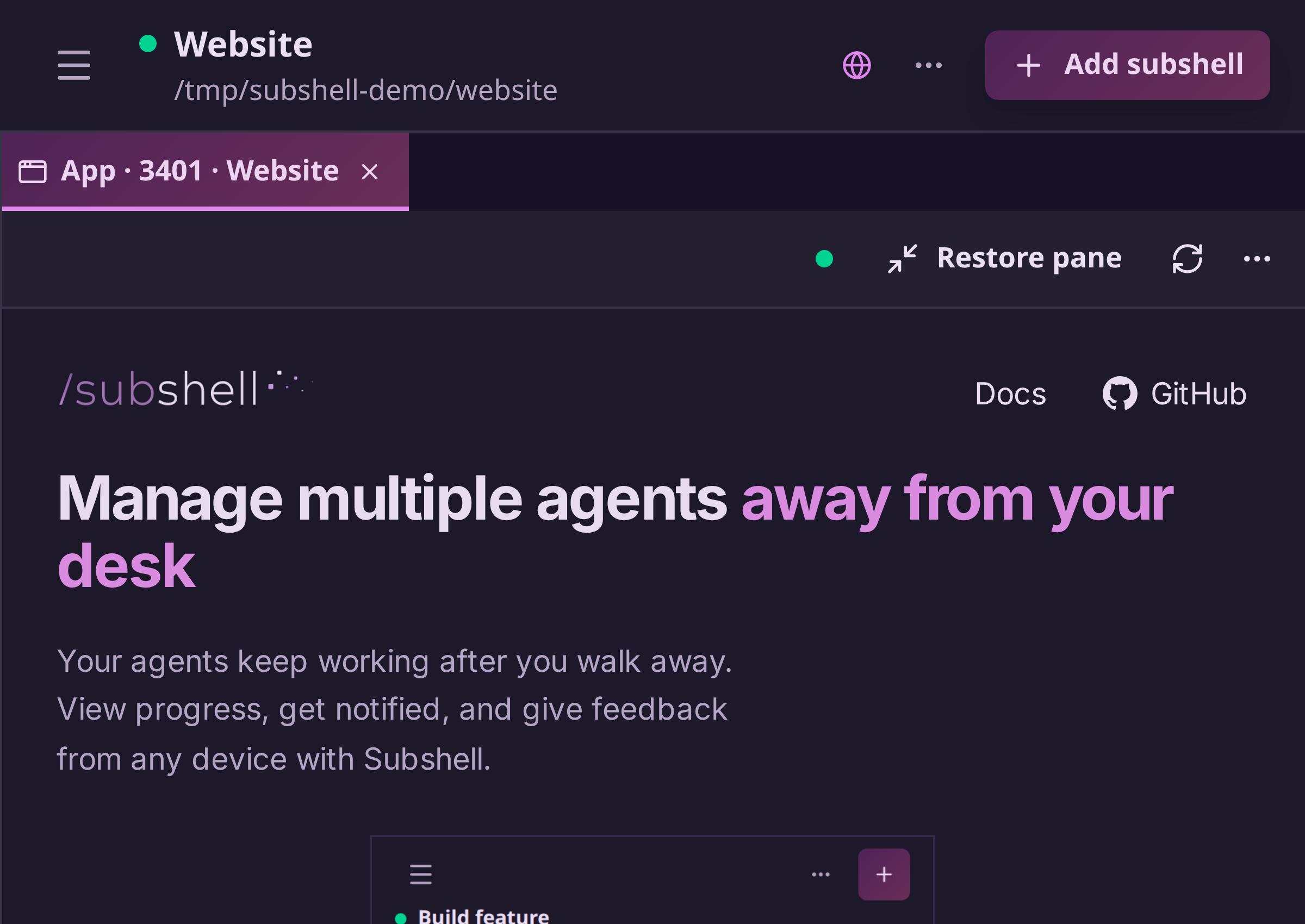
Web previews & screens lets you check a website or graphical app alongside the agent building it.
Prerequisites
Follow Preview prerequisites and setup to connect a node and enable the views you need. For a virtual screen, complete the Linux or macOS setup on that node too. The device you view from only needs a browser or Subshell Client.
Choose a view
| View | Use it to |
|---|---|
| Web app previews | Interact with a website through a private preview connection. |
| Browser watching | Watch a Chrome or Chromium browser running on a Linux node without controlling it. |
| Linux virtual displays | Give a subshell its own screen and control graphical apps there. |
| macOS virtual displays | Control apps on a virtual screen in the Mac's shared login session. |
Arrange and refresh views
Each app, browser watch, or display opens in its own workspace tab. On desktop, a new preview splits to the right of its terminal. Reopening the same view focuses its existing tab. Each open preview also appears beneath its subshell in the sidebar.
Drag preview tabs to keep several apps or screens visible together. Closing a preview leaves its subshell and other previews running. Hidden previews release their viewer connections and reopen when you select them again.
The viewer toolbar has refresh and a More view actions menu:
- Maximize pane enlarges that workspace pane. Restore pane appears directly in the toolbar while maximized.
- Full screen uses your browser's fullscreen mode. Exit full screen appears directly in the toolbar while active.
- Open in browser tab opens a web preview in a separate browser tab.
- Close view closes the current viewer.
Use the subshell header's Web previews & screens icon to open another view. On a phone, previews use the workspace's tab strip without changing your desktop split layout. From the standalone subshell page, the header icon takes you into the workspace and opens the picker there.
Agent workflows and security
Follow Preview workflows for agents to launch a helper through MCP and clean it up afterward.
Read Preview security before sharing a preview link or enabling remote screen control. For the data path and developer guidance, see Architecture, Web preview architecture, and Develop and extend web previews.
Edit on GitHubLast updated on