
Linux virtual displays
A Linux virtual display gives graphical programs in a subshell their own screen without a physical monitor.
Before you start
You'll need permission to install packages on the Linux node. Follow Preview prerequisites and setup for node ownership and view access requirements.
Install and configure
Install the dependencies on the Linux machine that runs the subshell, even when you're viewing it from another device.
- Use the Linux distribution's package manager to install Xvfb, x11vnc,
and xauth. Package names vary by distribution; the node needs the
Xvfb,x11vnc, andxauthcommands available on its execution account'sPATH. Install the browser or GUI app you want to use separately. - Follow Enable node features to allow virtual displays with Xvfb + VNC on this node. Once its requirements are ready, launch a subshell as described below.
The display runs with the subshell's execution account permissions. It isn't a sandbox for applications, and its local VNC listener has no separate password. Don't enable virtual displays on a host shared with untrusted local OS users, and don't publish the listener through a port forward. See Preview security.
Launch and open a display
- Launch a subshell on that node with Virtual display enabled. Choose Xvfb + VNC under Display provider, or keep Node default if it selects that provider.
- Launch your browser or GUI app from that subshell so it inherits the display settings.
- Use the window icon in the subshell header, then choose Virtual display. You can see and control the screen in its own workspace tab.
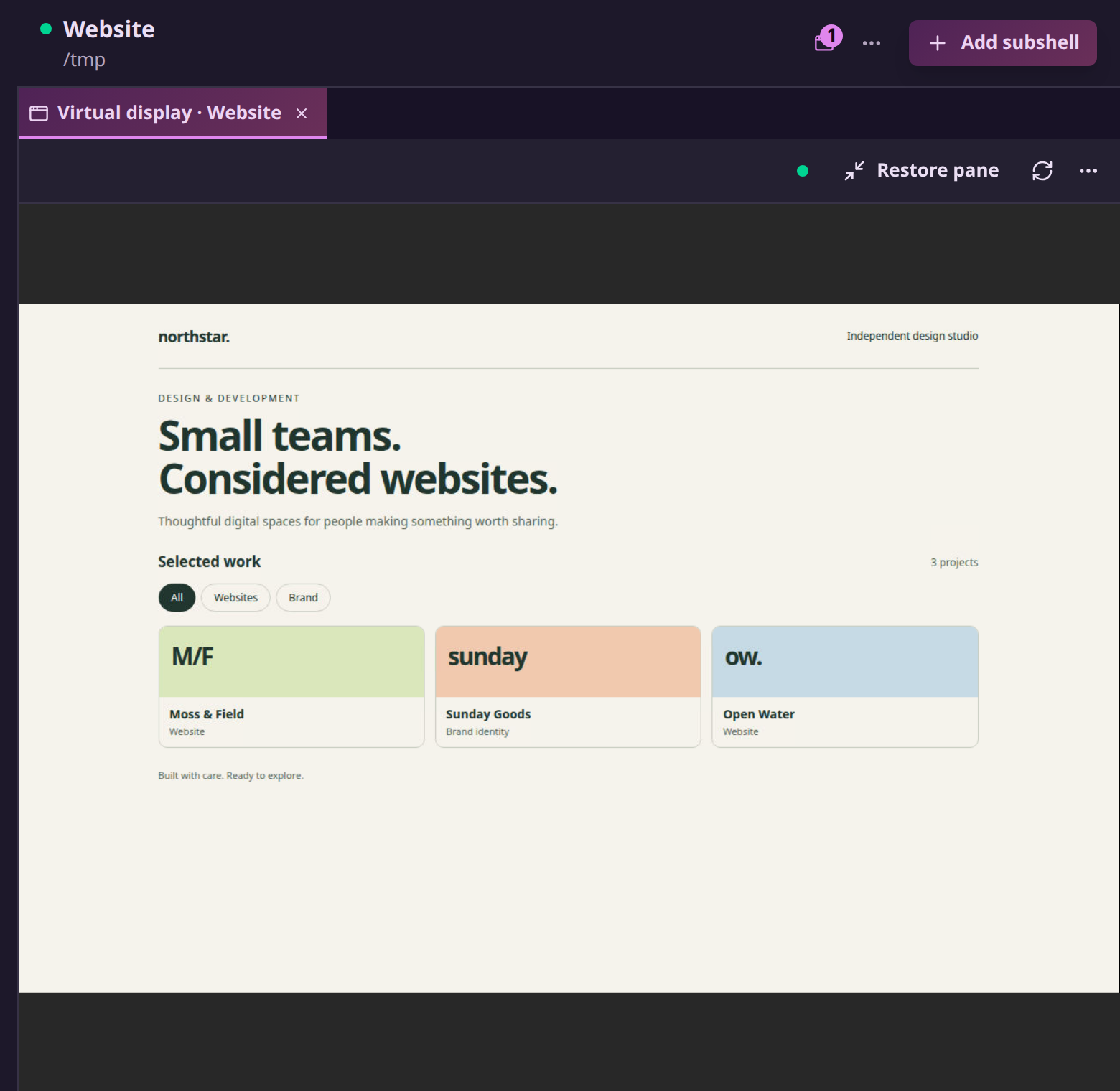
See Preview prerequisites and setup to save the display choice in a preset or understand how provider changes affect restarts.
Edit on GitHubLast updated on