
Set launch defaults
Prefill a preset's execution machine, project directory, and initial task.
Before you start
Create a preset and have launch access to the intended machine. Use an absolute working-directory path on that machine. The directory must exist and satisfy its directory rules when you launch.
Add defaults
- In the server dashboard sidebar, open Presets and select your preset's name.
- Under Launch defaults, choose a node in Machine. The server host's node is named by your administrator and defaults to Server.
- Enter the project's absolute path in Working directory, such as
/tmp/subshell-demo-projectfor the sample project. - Under Add prompts, select Add prompt and choose saved instructions or Write your own....
- Add more prompts if needed. Use their up and down controls to set the order, and remove any you do not want.
- Select Save.
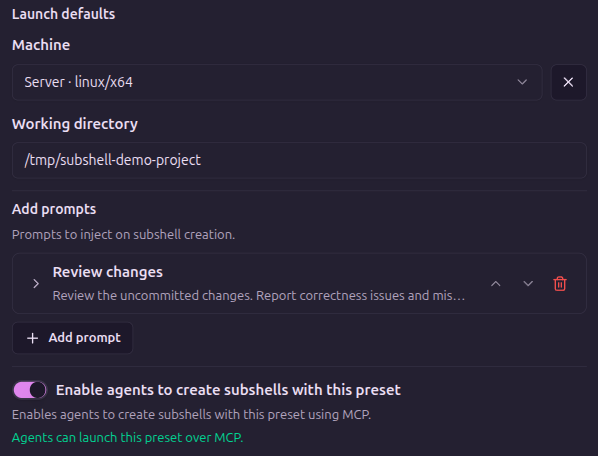
For the review example, the task text is:
Review the uncommitted changes. Report correctness issues and missing tests
with file paths and line numbers. Do not modify files.
Prompt text guides the agent; it is not a security boundary. Agent flags and permissions still govern what the process can do.
Review before launching
Human launch forms prefill these defaults and let you change them. Review the working directory when choosing another machine; the same path may not exist there.
You can save a default for a machine that is temporarily offline. Launch still checks availability, maintenance, agent detection, permissions, and directory rules. Saving defaults does not bypass those checks.
Prompt text is copied when you select it. Editing the prompt library later does not update the preset's saved text. Remove and re-add a library prompt or stack to refresh the saved copy, then save the preset. See Build prompt stacks.
Allow agent-created helpers
On the same preset editor, turn on Enable agents to create subshells with this preset, then select Save. This requires a machine and working directory; an initial prompt is optional.
The switch permits MCP launches with this preset. It does not grant access to another account's node or bypass launch checks. See Use and manage presets and Coordinate agents.
Next steps
Follow Use and manage presets to launch the saved configuration.
Edit on GitHubLast updated on