
Build prompt stacks
Group instructions into an ordered reusable stack.
Before you start
Create the prompts you want to combine, or have access to shared prompts. A stack can include library prompts and its own custom text. It cannot contain another stack.
Create a stack
- In the server dashboard sidebar, open Prompts and choose your own entries.
- Select New → New stack.
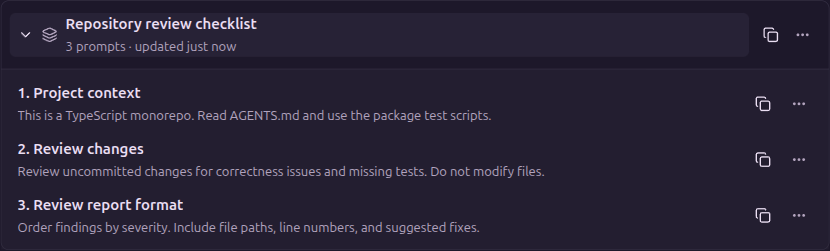
- Enter a descriptive Label, such as
Repository review checklist. - Under Prompts, select Add prompt and choose a library prompt or Write your own....
- Repeat for the other instructions. Use the up and down controls to put them in the intended order.
- Leave Share with everyone off for a private stack, then select Create stack.
A stack needs at least one instruction when created, supports at most 50 items, and must fit the 20,000-character limit after joining its text with blank lines. For example, combine project context, review instructions, and a report format in that order.
References and copies
A library stack references its saved prompts. Editing one of those prompts changes the text returned by the stack the next time it is read. Custom text belongs to the stack itself.
Selecting a stack in a launch form or preset copies its combined text. Later library changes do not update that selection or an already-running agent.
To refresh a preset, remove its old prompt block, select the library entry again, and save the preset. Recheck its text before launching.
Edit or delete
In Prompts, choose Stacked, find one of your stacks, and open its ⋯ menu. Choose Edit to change the label or membership and select Save. An existing stack can be emptied; Empty helps find those stacks in your own stacked view.
Deleting a stack keeps its saved prompts. Deleting a saved prompt removes that reference from every stack and may leave a stack empty. Deletion has no undo. Nothing already launched is rewritten.
Sharing a stack does not make its private referenced prompts public. See Share prompts for how each reader's visibility affects the result.
Next steps
Follow Use a reusable prompt to select your stack at launch or in an active session.
Edit on GitHubLast updated on