
Find your way around
Use the bar at the bottom of the sidebar to switch between your workspaces, settings, and account. The sidebar stays open on desktop, and each section remembers the page you last visited.
Stay in your workspace
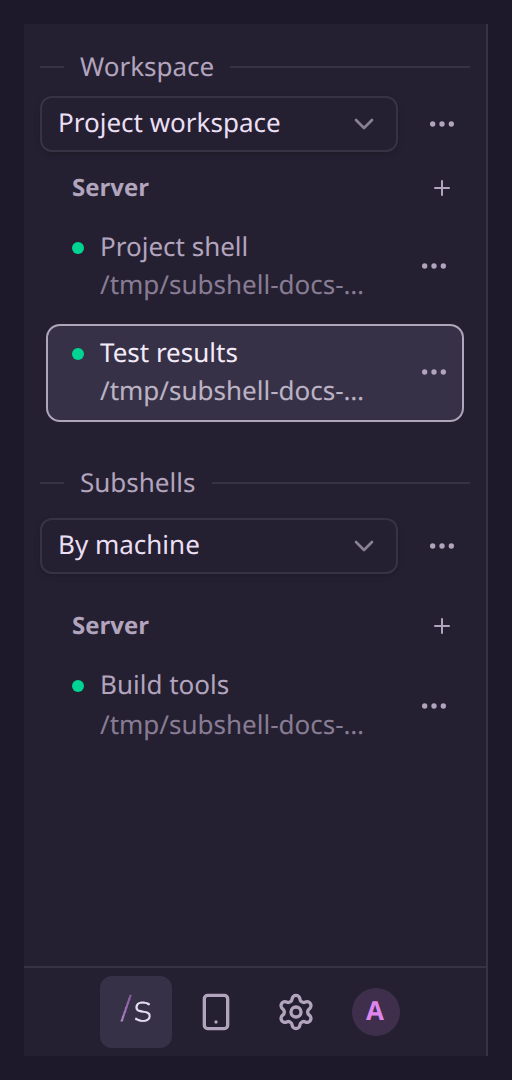
Your first launch opens a workspace. When you return, Subshell opens the last available workspace you visited. Workspaces in the sidebar’s bottom bar shows a selector and the subshells in that workspace. Choose another workspace to switch to it, or select New workspace at the bottom of the selector.
Open the ⋯ menu beside the selector for Add subshell, Open in new tab, QR code…, Rename…, or Delete workspace. Add subshell lets you pick an existing session or launch a new one. When none are available to add, it opens the new-subshell form directly. New additions open as tabs; on desktop, drag tabs to arrange split panes.
Removing a workspace's final tab retires the workspace, and that subshell keeps running unfiled. Deleting the workspace removes its arrangement and leaves the subshells running. Closing a subshell is a separate action that deletes the session and its captured history. See Workspaces and Session lifecycle.
Browse every subshell
The workspace's subshells appear at the top of the sidebar. Subshells below them lists everything else you can access, including subshells in other workspaces. Each subshell appears once in this panel.
- Group the other subshells by machine or status. Open Subshell dashboard from the ⋯ menu to search by name, path, or harness.
- Select another subshell to add it as a tab in the selected workspace. Select a workspace member to focus its tab.
- Drag a row into the workspace area to add it, or into Subshells to remove it from the workspace. A centered drop zone names the action. Removing a row leaves its session running; removing the row that held the last tab retires the workspace.
- Use the row's ⋯ menu for the same membership actions without dragging, alongside its session actions.
The ⋯ menu beside the grouping dropdown offers Add subshell and Subshell dashboard. The dashboard opens the full tile or list view, leaving the workspace view. If no workspace exists, selecting a subshell opens one through the usual workspace launch flow.
Follow subagents
Subagents appear as connected child rows beneath their parent subshell. Select the arrow beneath the parent's status dot to show or hide them without switching subshells. Clicking the already active parent row also toggles its children. See Subagents for names, status, and supported view switching.
Settings and your account
Choose Settings in the sidebar’s bottom bar to find Nodes, Presets, and Prompts under Personal. Administrators also see the Server Settings group for instance-wide configuration, users, networking, updates, backups, and logs.
Choose Account for Profile, Preferences, Feedback, About, and Sign out. Sign out asks for confirmation and leaves your subshells running. The bottom of this panel identifies your account and server.
Subshell for Mobile in the bottom bar opens a dialog with a server address, QR code, and browser installation instructions. See Connect from another device.
On a phone
Use Open navigation to open the drawer. Selecting a section in the bottom bar keeps the drawer open so you can choose its items. Selecting a page or subshell closes it. Workspaces show one pane at a time as tabs; desktop split arrangements remain available when you return to a wider device.
Edit on GitHubLast updated on