
Share a subshell
Grant other users access to a subshell you own.
Before you start
Only the owner can change sharing. The recipient needs an account on the same instance. Administrators can operate sessions but do not acquire ownership or the right to change their shares.
Grant access
- In the server dashboard's sidebar, choose Subshells. Open the ⋯ menu on your session's card or row and choose Share….
- Choose named users or Everyone.
- Select view or edit access.
- Save the sharing settings.
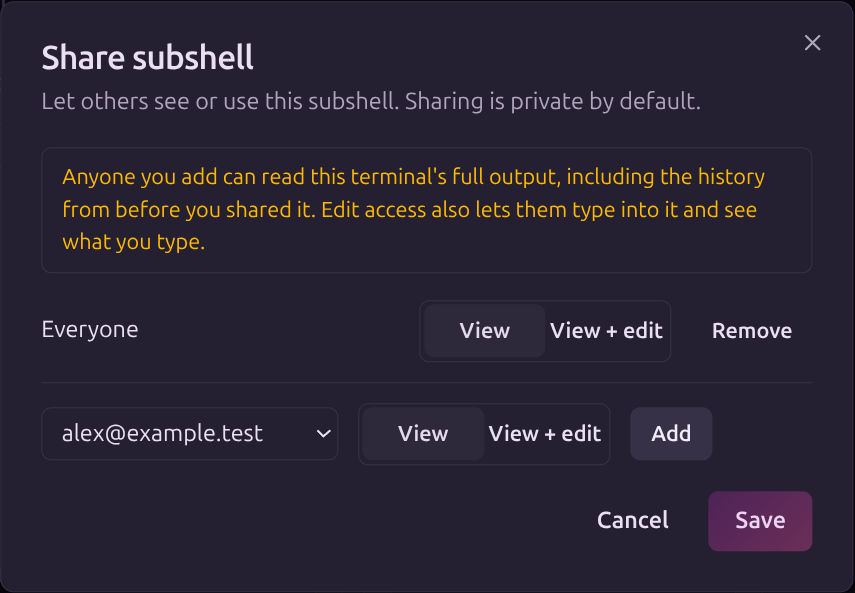
Everyone means signed-in accounts on the instance, not anonymous visitors.
| Access | What it allows |
|---|---|
| View | Read session details, captured output, and the live terminal. |
| Edit | View access plus input, rename, restart, and terminate through the API. |
| Owner | Manage sharing, notification preferences, and permanent deletion. |
What recipients see
Terminal disclosure
View access exposes terminal output, including any secrets displayed there. Edit access also allows input into the running process.
Attached viewers can see other viewers' device names and terminal dimensions. Notifications remain owner-targeted and are not added by a sharing grant.
Revoke access
Remove the relevant grants in the sharing dialog. An agent's pane token can list shared sessions, but it cannot inspect or change another user's session through that grant.
Next steps
Read Access model and Communication security.
Edit on GitHubLast updated on