
Connect over SSH
Open an SSH terminal on another machine through one of your Subshell nodes.
Before you start
You need launch access to an online node and an SSH account on the destination. The connecting node must be able to reach the destination over the network. Your browser doesn't need that network access, and the destination doesn't need Subshell installed.
For example, you could open the dashboard on your phone, connect from a node in your office, and sign in to a build machine that only the office network can reach.
Open the connection form
- In the server dashboard's sidebar, choose Subshells, then New subshell.
- Select SSH terminal.
- Under Connect from, choose the node that will make the SSH connection.
- Under SSH destination, enter an address such as
developer@build.example.com:22, or choose a suggestion. SSH aliases come from the connecting node's SSH configuration; their suggestions show the resolved username, host, and port when available. - Select Remember this destination if you want to keep it in your saved suggestions when you start the subshell.
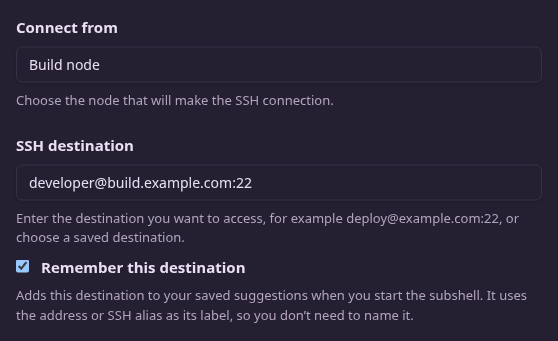
If outgoing SSH is disabled on a node you own, the gold notice explains that starting the subshell will enable it. For someone else's node, its owner must enable SSH first. The form names the owner when available and checks every five seconds while you wait. An administrator manages this setting for the built-in node on the server host.
Choose how to sign in
The Authentication choices refer to the selected nodes, not the device where you're viewing the dashboard.
| Choice | What happens |
|---|---|
| Use the connecting node’s keys | SSH uses the connecting node's SSH configuration and available keys. The node's name appears below the option. |
| Use another node’s keys | Choose a second node under Use keys from, then select the keys this connection may use. You need launch access to both nodes. |
| Enter a password when connecting | Enter the destination account's password in the terminal when SSH prompts. Subshell doesn't save it. The destination must allow password authentication. |
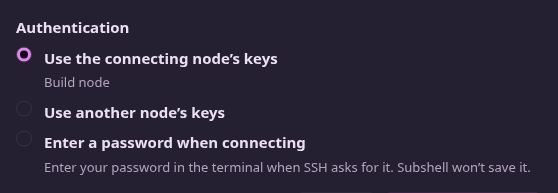
When using another node's keys, those keys must be loaded in an SSH agent that the node's Subshell process can access. Keys available in an interactive terminal might not be available to a background service. If the list is empty or unavailable, ask that node's owner to check its SSH agent and the service's SSH_AUTH_SOCK environment, then select Reload keys. See Files and paths for the node's configuration locations.
The private keys stay with the node supplying them. Subshell relays encrypted signing requests between the two nodes for the keys you selected. Both nodes must remain available for authentication. If SSH is disabled on a key source you own, the form explains that starting will enable it; you'll then select keys before connecting.
Start and verify the connection
Select Start SSH subshell. If you're using another node's keys and neither that node nor your account already trusts the destination, Subshell asks Connect to this destination? before signing in.
A host key is the destination machine's public SSH key. It identifies that machine; your login key or password identifies you. Remembering the host key lets SSH detect a different machine answering at the same address later. You don't need to generate, paste, or manage host keys in the dashboard.
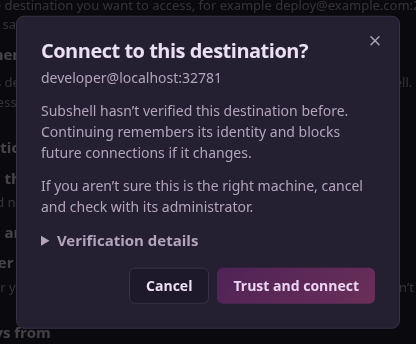
Check the address. If you need to verify the machine, expand Verification details and compare the fingerprint with one obtained from its administrator through a trusted channel. Choose Trust and connect to remember that identity and retry the connection, or Cancel to leave it untrusted.
First-connection trust
A key retrieved from the destination isn't independent proof that you've reached the right machine. Accepting it without checking the fingerprint trusts the first response. Subshell blocks later connections if the identity changes; it doesn't silently replace the saved identity. If that happens, stop and verify the change with the destination's administrator.
For these connections, Subshell stores the public host key and destination in the server's database, scoped to your account. The stored key isn't a login credential or a private key. Access checks protect the record through the API; the server operator controls the database, so this protection depends on trusting your Subshell server.
Connections using the connecting node's own keys or a password use that node's OpenSSH trust records instead. They automatically remember a previously unknown host key and reject a changed one. To verify a destination before that first connection, have the node's owner establish its trusted host key on the node first.
Once connected, the terminal shows the destination's shell. If you selected password authentication, wait for its password prompt before typing. Only the owner signed in to the dashboard can type in an SSH subshell; MCP and other bearer credentials cannot send input. Session sharing lets other users view its output.
Saved and recent destinations
Open Settings → SSH in the dashboard sidebar to manage your destinations. Saved destinations contains entries you've remembered; Recent destinations lets you save one later. Use a row's Forget action to remove it from saved suggestions.
You don't need a separate label. Subshell uses the address or SSH alias, and keeps different usernames on the same host as separate destinations. For example, developer@build.example.com:22 and operator@build.example.com:22 are distinct entries.
Remembering a destination saves a suggestion, not a password. Forgetting it doesn't close an open subshell or reset its verified identity.
Make the destination a node
As the SSH subshell's owner, open its ⋯ menu and choose Set up Subshell here… when available. Review the confirmation before running the installer: it installs Subshell on the destination and enrolls it as a node you own. Your SSH subshell keeps running.
This requires node enrollment to be allowed and an SSH login that works without interactive prompts. Password-only login can't supply a stored password to the installer. You can close and reopen the dialog to check progress. Results remain available for one hour while the server keeps running. Progress isn't retained across a server restart; check Nodes and the destination before retrying an interrupted installation. If it reports enrollment without a confirmed connection, open the new node's page and check its service before trying another installation.
Next steps
Use Manage a node to change Allow SSH. Turning it off blocks new outgoing connections and stops the node from supplying keys. It doesn't change incoming SSH access to that machine.
Edit on GitHubLast updated on