
Connect from another device
Open the same Subshell session from another device.
Before you start
Your other device must reach the server over your LAN or configured private network. A loopback address such as localhost refers to the device opening it, so it cannot reach a server on another machine.
Open the server
- Ask the administrator for a reachable server address. Administrators can find network addresses by opening Server Settings → Networking in the dashboard sidebar and selecting Configure for the connected network.
- Open that address in the other device's browser.
- Sign in with your existing account.
- Select the subshell from the sidebar.
You see the same session rather than a copy of it. Multiple viewers can affect terminal dimensions; see Devices.
To open a particular session, choose Subshells in the dashboard sidebar, open its ⋯ menu, choose QR code…, and scan the code with the other device. The link still requires sign-in and permission to view that subshell.
Connect a phone or tablet
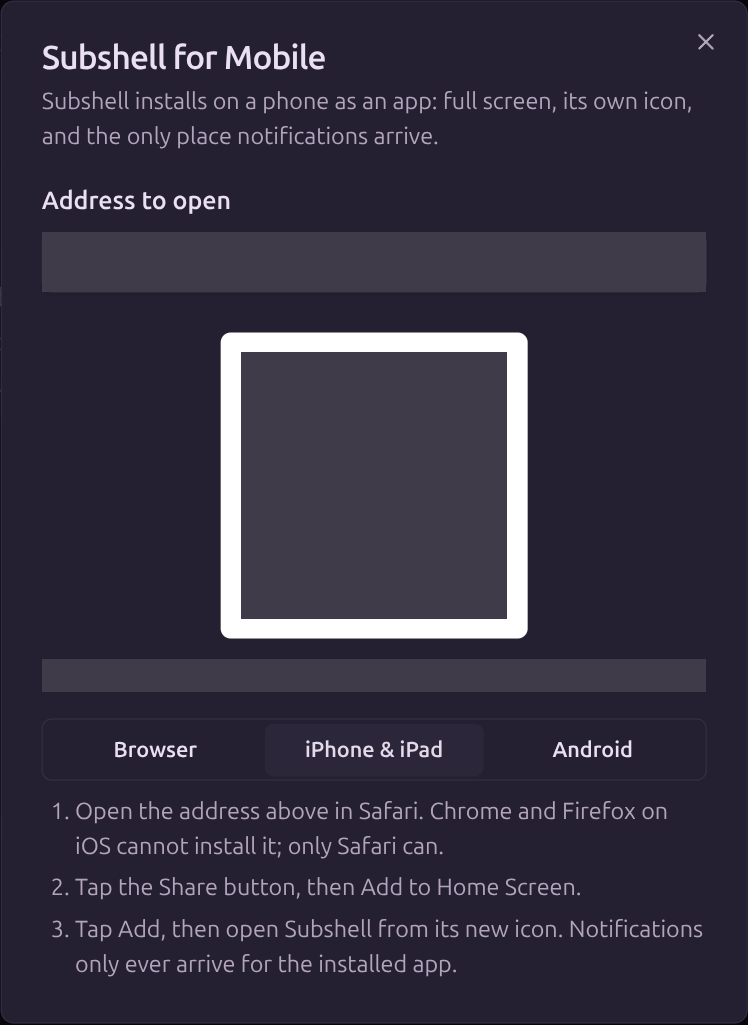
- In the server dashboard on your current device, select Subshell for Mobile near the bottom of the sidebar.
- In the dialog, choose a server address under Address to open that your phone or tablet can reach.
- Scan the QR code with that device and open the address in its browser.
- Sign in with your existing account.
The dialog includes Browser, iPhone & iPad, and Android tabs with instructions for installing the browser-based web app. Choose the tab for your device and follow its steps to add Subshell to your home screen.
If no QR code appears, ask an administrator to configure a reachable address using LAN access or Networking. The QR code does not sign you in or grant access to sessions.
For browser requirements and notification support, see Browser and PWA access.
If the address does not work
Check LAN access for reachability and Sign-in and origin errors for rejected addresses. Passkeys are tied to the configured server hostname.
Next steps
Use Workspaces to organize several sessions, or Desktop node setup to run agents on another machine.
Edit on GitHubLast updated on